Getting Started With CSS

What is CSS?
- CSS stands for Cascading Style Sheets
- Cascading Style Sheets (CSS) is a simple mechanism for adding style (e.g., fonts, colors, spacing) to web pages.
- CSS is used to make awesome and beautiful web pages.
- Although we can make webpages without using CSS properties but it'll look plain and ugly.
- CSS is like a cherry on HTML.
Ways to write CSS in web development
Inline CSS
By style attribute inside a particular HTML element.
<div style="color:blue ;">Inline CSS</div>
Note: This CSS will apply only to that particular element, not to other elements which is of the same tag.
2.Internal CSS
By using a style tag inside the head tag
<head>
     <style>

        h1{
            background-color: aqua;
            color: blue;
        }

    </style>
    </head>
- External CSS
By Creating a Separate file, (filename.css) and linking that file into an HTML file inside the head tag.
<head>

    <title>CSS</title>
    <link rel="stylesheet" href="style.css"> // filename is style.css

</head>
This is the best practice to keep a separate style code. This way of writing CSS makes our code clean and more readable
Q. Suppose we give styling to the same element via all these ways i.e inline, internal, and external CSS ? what will happen, and which property applies in which ways?
Ans: The property of Inline CSS applies to it because Inline CSS has the highest priority or you can say that highest Cascading Order.
Cascading Order
- Priority wise
Inline CSS
Internal CSS
External CSS
Inline CSS > Internal CSS > External CSS
Important Topics
- CSS Selector
- CSS Box Model
- CSS Colors
- CSS Units
- CSS variable
- CSS Layout
- CSS Flexbox
- CSS Grid
- CSS Animations
- CSS Media query
CSS Selector
CSS selectors are used to selecting the content of a specific HTML element that you want to give some styling on it. Here are some most commonly used CSS selectors: -
- Element Selector
some html elements are : h1 ,h2...h6,div,p,span,ul,nav,main
    <style>
        h1{
            color:blue;
        }
    </style>
</head>
<body>
    <h1>you are awesome</h1>
</body>
- Id Selector
To select an element using this selector we write #id_name. Id name should be always unique means two element doesn't have the same id_name.
  <style>
        #heading{
            color:blue;
        }
    </style>
</head>
<body>
    <div id="heading">you are awesome</div>
</body>
- Class Selector
To select an element using this selector we write .class_name. Class selector is used to select multiple elements means multiple elements should have the same class_name
 <style>
        .paragraph{
            color:blue;
        }
    </style>
</head>
<body>
    <div class="paragraph">Lorem ipsum dolor sit amet consectetur adipisicing elit. Harum, repudiandae.</div>
</body>
- Universal Selector
To Select all html elements. * is used to select all elements
 <style>
        *{
            color:blue;
        }
    </style>
</head>
<body>
    <div class="paragraph">Lorem ipsum dolor sit amet consectetur adipisicing elit. Harum, repudiandae.</div>
    <div>I am a web developer</div>
    <div>I am learning React Js</div>
</body>
- Grouping Selector
This selector is used to give same styling to more than one element
    <style>
        p,div,h2,span{
            color:red;
        }
    </style>
</head>
<body>
    <p>Learning web development with neogcamp</p>
    <div class="paragraph">Lorem ipsum dolor sit amet consectetur adipisicing elit. Harum, repudiandae.</div>
    <h2>I am a web developer</h2>
    <span>I am learning React Js</span>
</body>
- Attribute Selector
    <style>
        a[target]{
            color:red;
        }
    </style>
</head>
<body>
    <a href="http://www.google.com" target="_blank" rel="noopener noreferrer">Google</a>
    <a href="https://manishgupta.netlify.app/projects.html" target="_blank" rel="noopener noreferrer">My portfolio</a>

</body>
These are the mostly used selector. There are many selectors but no one can remember them. So the best way is to just google things whenever you require.
CSS Box Model
The CSS box model is essentially a box that wraps around every HTML element. It consists of: margins, borders, padding, and the actual content
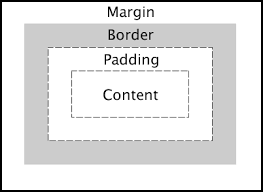
Tricks to remember : MBPC -->margin , border , padding, content
When you take any of them from MBPC, for example, take a margin, the following example shows how it applies to a HTML element
Examples
- 1st way to write :
 margin :   7px   8px      9px     13px
            top   right    bottom  left
- 2nd way to write :
                             top      left
                               👆     👈
                     margin : 5px     9px          : Here 5px value apply to top & bottom and 9px value apply to left & right.
                               👇     👉
                             bottom   right
- 3rd way to write :
margin : 15px , : Here 15px value apply to top , bottom as well left and right
Let's see an overview of some most commonly CSS property
Background Property :
background-color
background-image
background-size
background-repeat
background-position
background-attachment
Display Property:
display: inline
display: block
display: inline-block
display: none
display: hidden
visibility: hidden
Text Related Property:
text-align
text-decoration
text-transform
text-shadow
line-height
Font Related Property
font-size
font-family
font-weight
font-size
font-style
font-variant
Position Property :
Note: We Can't use the position property because the Default position will be static, So if you give top/bottom/left/right/z-index will not work. To use this all property we have to do --> position: relative/absolute to use left-right. You can read more about it.
position: relative
position: absolute
position: fixed
position: sticky
List Property:
list-style-type
list-style-image
list-style-position
Link Related Property:
a:link
a:active
a:visited
a:focus
a:hover